Smart glasses
Playing PS5 with AR glasses (Xreal, RayNeo): the connection guide
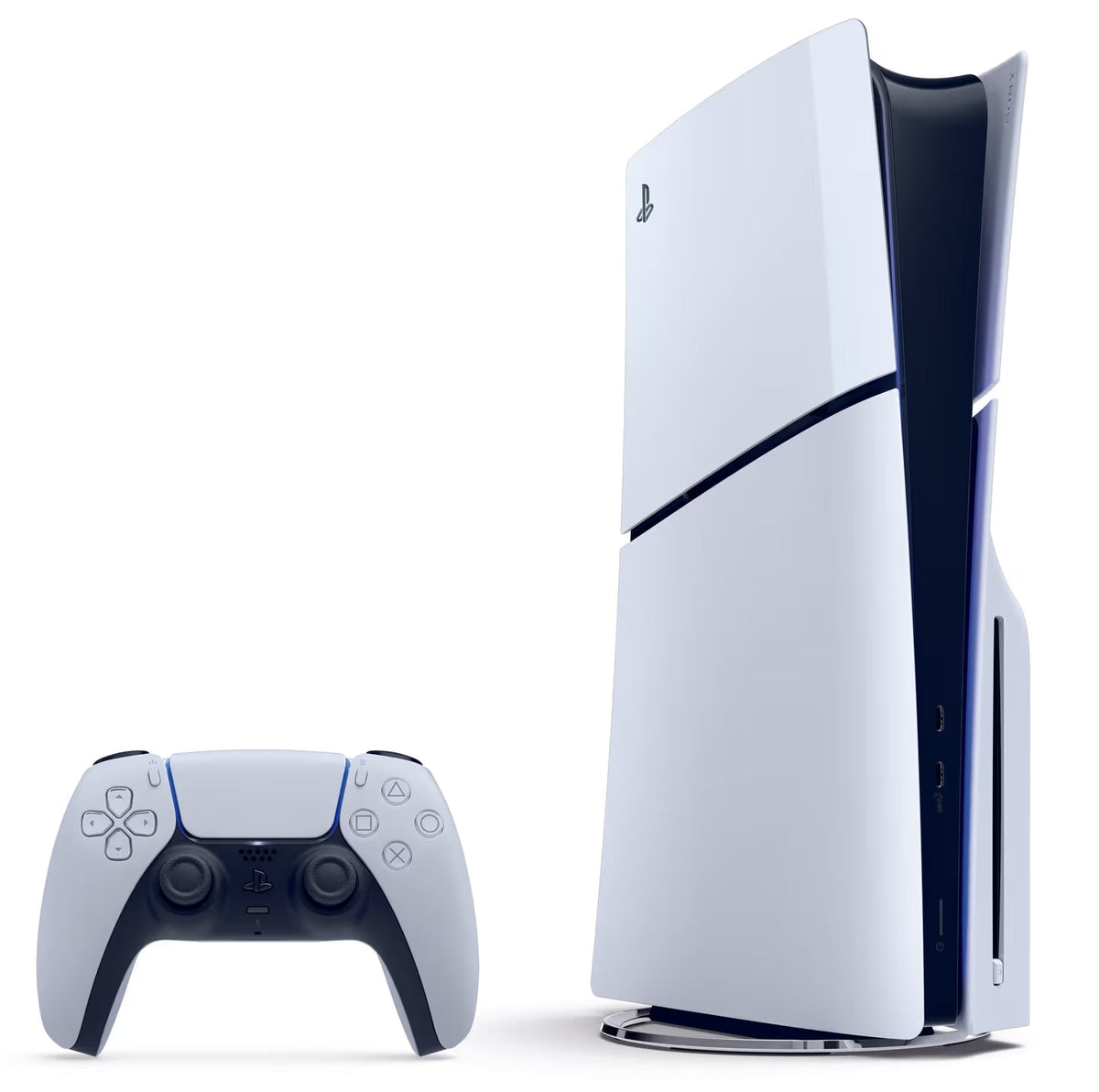
No free TV, a hotel room, a holiday home? Display glasses such as the Xreal One Pro or RayNeo Air 4 Pro show your console's picture on a giant virtual screen, right in front of your eyes. With a PS5 or a PS5 Pro, you just need one extra accessory.
The principle: the PS5 outputs HDMI, the glasses take USB-C
These glasses receive the picture through a USB-C cable with video output. The PS5, for its part, only has an HDMI video output. So you cannot connect them directly: you need an HDMI to USB-C adapter, powered from a socket or a power bank.
What you need
- A PS5 or PS5 Pro.
- Compatible display glasses (Xreal, RayNeo, Viture, Rokid…).
- An HDMI to USB-C adapter designed for these glasses. RayNeo and several accessory makers offer them.
- An HDMI cable and a USB power supply for the adapter.
- A DualSense controller, of course.
Connecting it step by step
- Connect the PS5's HDMI output to the adapter's HDMI input.
- Plug in the adapter's power supply.
- Connect the glasses to the adapter's USB-C video port.
- Switch on the console: the picture should appear in the glasses.
No picture? The HDCP setting
This is the most common problem. The PS5 protects its HDMI signal with HDCP, which many adapters do not handle. If the screen stays black, first connect the PS5 to a TV and turn off the HDCP option in the console's HDMI system settings. Note that video streaming apps may then refuse to display: games, however, work.
No sound with Xreal glasses?
Adapter makers point out that Xreal glasses sometimes need to be switched to a particular display mode to receive picture and sound from an HDMI adapter. The glasses' user manual explains how.
What quality should you expect?
The Xreal One Pro and RayNeo Air 4 Pro show a Full HD image per eye at up to 120 Hz. That is very comfortable for most games, but it is not 4K: the PS5 Pro's finest graphics are better appreciated on a good TV. The glasses have their own speakers, and you can also plug a headset into the controller.
What about PlayStation Portal?
PlayStation Portal cannot send its picture to glasses: it has no video output. It is a portable screen in its own right, which plays your PS5 games remotely and via cloud streaming. For playing without a TV in another room, it is often the simplest solution: see Playing without a PS5 with PlayStation Portal.
AR glasses or PlayStation Portal?
- AR glasses + PS5: maximum immersion and a giant screen, but you have to take the console and the adapter with you.
- PlayStation Portal: all-in-one and wireless; all you need is a good Wi-Fi connection.
To compare the glasses themselves, read our 2026 smart glasses comparison.
Sources
- RayNeo HDMI Adapter, user manual – manuals.plus
- Newegg, HDMI to USB-C adapter for AR glasses (Xreal and PS5 notes) – newegg.com
- PC-WELT, RayNeo Air 4 Pro – pcwelt.de
- TechRadar, “Xreal One Pro review” – techradar.com


